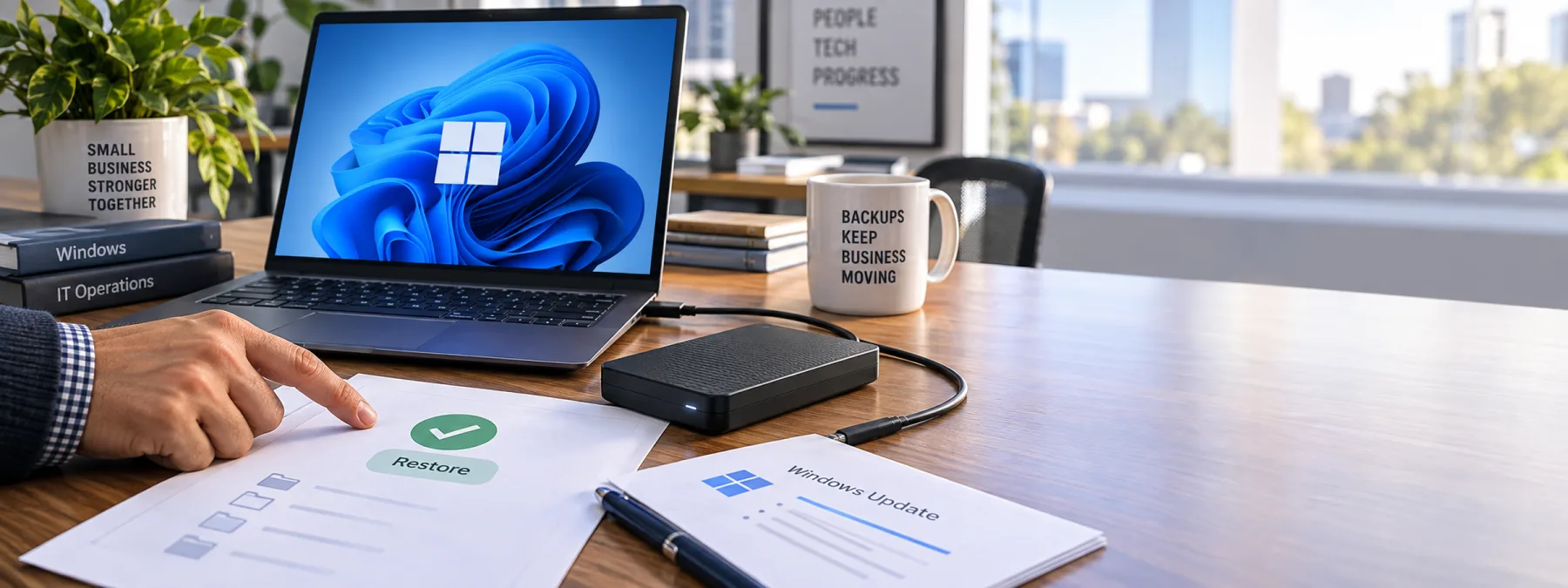
Microsoft updated its September 2026 Windows 11 security update documentation on September 19 with a known issue affecting File History backups. After installing KB5124008, some customers using File History may be unable to create or update backups, even when a backup drive is connected.
The symptoms matter because they can look deceptively ordinary. Microsoft says affected devices may show a reconnect-your-drive message, fail to update the last-backup timestamp, show no previous versions, or log crashes involving FileHistory.exe and KERNELBASE.dll. Microsoft says it is working on a future update to resolve the issue.
For a business owner, this is not only a Windows File History backup issue. It is a reminder that a configured backup is not the same thing as a verified restore. That difference can sit quietly in the background until someone needs a deleted file, a recovered folder, or a usable copy of a workstation document.
The business decision is backup konfyans
Many small offices have a mix of backup arrangements. Some files may live in Microsoft 365, Google Workspace, line-of-business apps, or a managed backup platform. Other files may still sit on desktops, local folders, external drives, scanner workstations, accounting exports, or shared PCs that grew into business-critical systems over time.
That mixed reality is where backup confidence can get a little too comfortable. If File History is part of the safety net, the business needs to know which computers use it, what data it protects, whether recent backups actually completed, and whether those files can be restored without heroics.
Questions for the IT provider
- Exposure: Which Windows 11 endpoints installed the September 2026 update and also rely on File History?
- Backup status: Are those devices creating new backups, or are they showing reconnect-drive messages or stale last-backup timestamps?
- Restore proof: When was the last test restore completed for a sample file or folder from those endpoints?
- Data location: Which important files still live only on local desktops, external drives, scanner PCs, or staff workstations?
- Fallback coverage: Are those files also protected by OneDrive, SharePoint, a managed backup service, or another recoverable copy?
- Patch process: Does the post-patch checklist include backup verification for systems that handle critical business data?
- Ownership: Who is responsible for deciding whether File History is acceptable for business data, and when should it be replaced with managed backup?
A practical next step
Owners do not need to diagnose FileHistory.exe crashes. They do need a short, written answer from the person managing technology: which systems are affected, whether backups completed after patching, and what proof exists that a restore would work.
If the answer is unclear, start with a focused backup review instead of a broad tool-shopping exercise. Identify the few workstations that would hurt the business most if local files vanished, verify whether File History is involved, and test a restore from each backup path. The restore button is where optimism gets audited.
For New Jersey businesses that depend on small teams and practical systems, this is the useful lesson from Microsoft's update: backup planning should not end at configuration. It should end with evidence that the files a business cares about can come back when needed.
Sources and further reading